
Table of contents
One of the nicer Hyper-V features is the ability to maintain notes for each virtual machine. Most of my VMs are for testing and I’m the only one that accesses them so I often will record items like an admin password or when the VM was last updated. Of course, you would never store passwords in a production environment but you might like to record when a VM was last modified and by whom. For single VM management, it isn’t that big a deal to use the Hyper-V manager. But when it comes to managing notes for multiple VMs PowerShell is a better solution.
In this post, we’ll show you how to manage VM Notes with PowerShell and I think you’ll get the answer to why you should be using VM Notes as well. Let’s take a look.
Using Set-VM
The Hyper-V module includes a command called Set-VM which has a parameter that allows you to set a note.
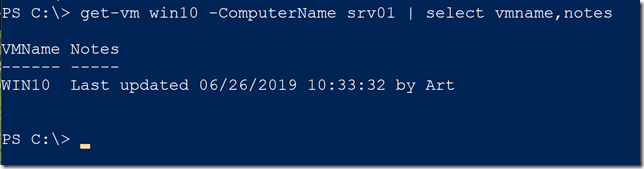
set-vm win10 -ComputerName srv01 -Notes "needs updating - JH"
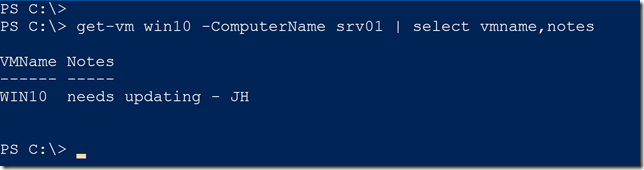
As you can see, it works just fine. Even at scale.

But there are some limitations. First off, there is no way to append to existing notes. You could get any existing notes and through PowerShell script, create a new value and then use Set-VM. To clear a note you can run Set-VM and use a value of “” for -Notes. That’s not exactly intuitive. I decided to find a better way.
Diving Deep into WMI
Hyper-V stores much in WMI (Windows Management Instrumentation). You’ll notice that many of the Hyper-V cmdlets have parameters for Cimsessions. But you can also dive into these classes which are in the root/virtualization/v2 namespace. Many of the classes are prefixed with msvm_.
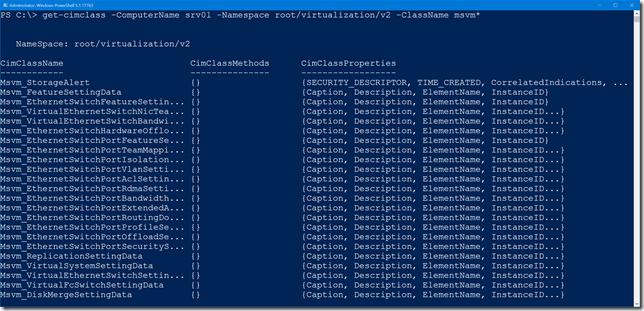
After a bit of research and digging around in these classes I learned that to update a virtual machine’s settings, you need to get an instance of msvm_VirtualSystemSettingData, update it and then invoke the ModifySystemSettings() method of the msvm_VirtualSystemManagementService class. Normally, I would do all of this with the CIM cmdlets like Get-CimInstance and Invoke-CimMethod. If I already have a CIMSession to a remote Hyper-V host why not re-use it?
But there was a challenge. The ModifySystemSettings() method needs a parameter – basically a text version of the msvm_VirtualSystemSettingsData object. However, the text needs to be in a specific format. WMI has a way to format the text which you’ll see in a moment. Unfortunately, there is no technique using the CIM cmdlets to format the text. Whatever Set-VM is doing under the hood is above my pay grade. Let me walk you through this using Get-WmiObject.
First, I need to get the settings data for a given virtual machine.
$data = Get-WmiObject -computername srv01 -Namespace root/virtualization/v2 -Class msvm_VirtualSystemSettingData -filter "ElementName='win10'"
This object has all of the virtual machine settings.
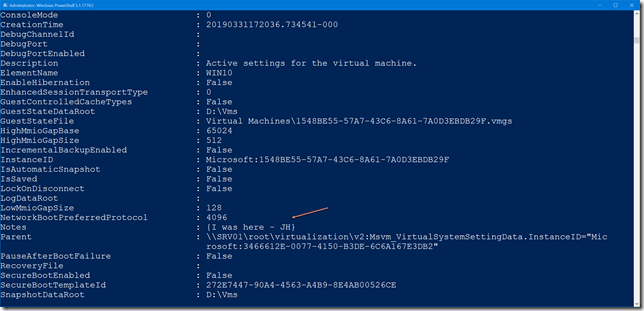
I can easily assign a new value to the Notes property.
$data.notes = “Last updated $(Get-Date) by $env:USERNAME”
At this point, I’m not doing much else than what Set-VM does. But if I wanted to append, I could get the existing note, add my new value and set a new value.
$n = $data.notes -as [array]
$n += "[$(Get-Date)] This is another note "
$data.notes = $n | out-string
At this point, I need to turn this into the proper text format. This is the part that I can’t do with the CIM cmdlets.
$text = $data.GetText("CimDtd20")
To commit I need the system management service object.
$vmms = Get-WmiObject -ComputerName srv01 -Namespace root/virtualization/v2 -Classname msvm_virtualsystemmanagementservice
I need to invoke the ModifySystemSettings() method which requires a little fancy PowerShell work.
$modifyParams = $vmms.GetMethodParameters("ModifySystemSettings")
$modifyParams.SystemSettings = $text
$VMMS.InvokeMethod('ModifySystemSettings', $ModifyParams, $null)
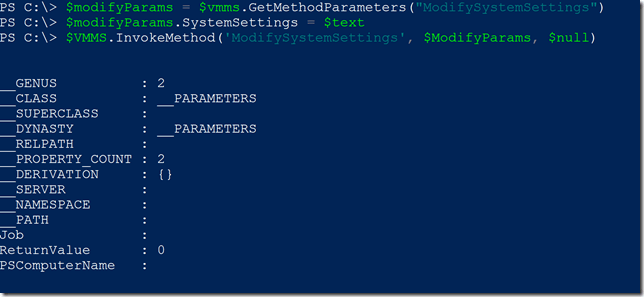
A return value of 0 indicates success.
The Network Matters
It isn’t especially difficult to wrap these steps into a PowerShell function. But here’s the challenge. Using Get-WmiObject with a remote server relies on legacy networking protocols. This is why Get-CimInstance is preferred and Get-WmiObject should be considered deprecated. So what to do? The answer is to run the WMI commands over a PowerShell remoting session. This means I can create a PSSession to the remote server using something like Invoke-Command. The connection will use WSMan and all the features of PowerShell remoting. In this session on the remote machine, I can run all the WMI commands I want. There’s no network connection required because it is local.
The end result is that I get the best of both worlds – WMI commands doing what I need over a PowerShell remoting session. By now, this might seem a bit daunting. Don’t worry. I made it easy.
Set-VMNote
In my new PSHyperVTools module, I added a command called Set-VMNote that does everything I’ve talked about. You can install the module from the PowerShell Gallery. If you are interested in the sausage-making, you can view the source code on Github at https://github.com/jdhitsolutions/PSHyperV/blob/master/functions/public.ps1. The function should make it easier to manage notes and supports alternate credentials.
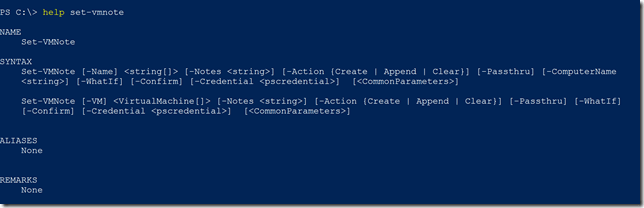
Now I can create new notes.

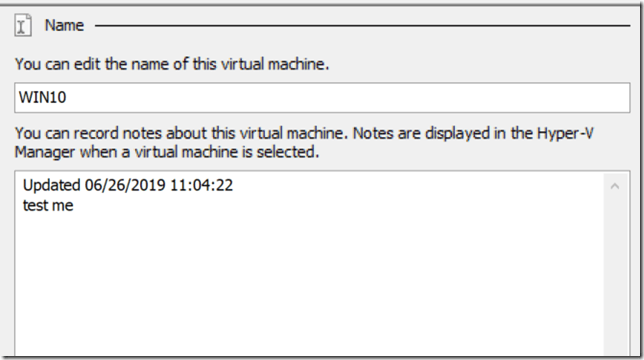
Or easily append.

It might be hard to tell from this. Here’s what it looks like in the Hyper-V manager.
Most of the time the Hyper-V PowerShell cmdlets work just fine and meet my needs. But if they don’t, that’s a great thing about PowerShell – you can just create your own solution! And as you can probably guess, I will continue to create and share my own solutions right here.
More in this category


About the Author

Jeffery Hicks