Table of contents
By default, the checkpoint files for any given Hyper-V virtual machine are stored in a Snapshots sub-folder of its primary containing folder. “Snapshots” is what checkpoints were called in earlier versions, but the folder naming and some other elements have not yet been updated to match.
If you are using Hyper-V’s defaults, then the virtual machines’ master folder is C:ProgramDataMicrosoftWindowsHyper-V, and underneath that is a Snapshots folder. Any virtual machines created in the default location with default settings will place any of its checkpoint files in that folder with the exception of the differencing virtual hard disk files. Those are always kept in the same location as their parent virtual hard disk.
If you’d like, you can change where the checkpoint files are located on a per VM basis by following these instructions:
- Open Hyper-V Manager. In the left pane, choose the host that owns the virtual machine you wish to modify.
- In the upper center pane, click to select the virtual machine to be changed. Ensure that it doe not already have any checkpoints; the middle center pane will list any if they exist.
- Right-click on the virtual machine and choose Settings.
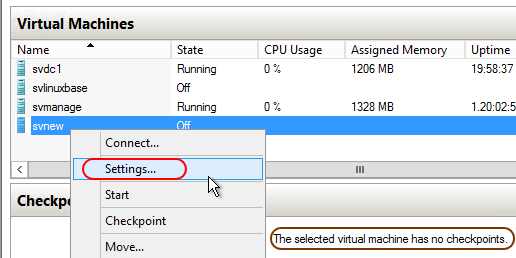
VM Settings
- In the dialog that appears, select the Checkpoint File Location tab on the left. On the right, you’ll see the fields as shown in the following screenshot. If the VM is clustered, there will be a warning that you cannot use this tool to change the location. Use Failover Cluster Manager instead; directions are nearly the same.
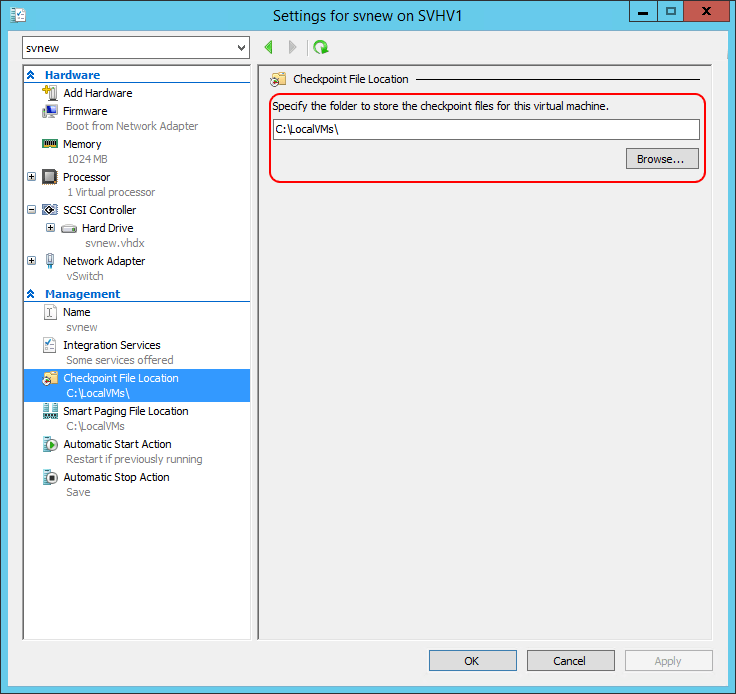
Default Checkpoint Location
A few things to note:
- This setting only affects the XML and, if necessary, BIN and VSV file placement for the checkpoint. It’s necessary to keep them separate from the primary files because they use the same name. The checkpoint’s differencing virtual hard disks are created alongside the parent.
- Do not manually specify a Snapshots sub-folder. One will be automatically created if it does not exist. This is to ensure that there is no collision with live VM files.
- Do not attempt to manually manipulate any checkpoint file. Doing so will prevent successful merge when the checkpoint is deleted. Similarly, do not manipulate any file belonging to the live virtual machine while a checkpoint is operational or the checkpoint may become completely invalidated, leading to lost data.
- Changes here only affect a single VM. To operate on multiple virtual machines at once, you must use PowerShell.
- Changing the location for a virtual machine has no effect on the host’s global default location for all virtual machine files.
[thrive_leads id=’17660′]
More in this category


About the Author

Eric Siron