Table of contents
Recently I posted an article on using PowerShell to find when a virtual machine was last used. If you missed the original article, you might want to check it out as the concepts haven’t really changed. When I first wrote my PowerShell function, I made an assumption that it had to run locally. And for the most part that is still true. In order to get the actual VHD or VHDX file I need to be on the server because the path is relative to the server. Although sometimes you can run commands remotely from your desktop and get some information.
PS C:> get-vm chi-dc01 -ComputerName hv01 | select id | get-vhd -ComputerName hv01

ComputerName : hv01
Path : D:VHDGlobomantics-DC_F1517EF1-534A-45F3-8228-969A87E391A7.avhd
VhdFormat : VHD
VhdType : Differencing
FileSize : 4704739328
Size : 16106127360
MinimumSize : 16105078784
LogicalSectorSize : 512
PhysicalSectorSize : 512
BlockSize : 2097152
ParentPath : D:VHDGlobomantics-DC.vhd
FragmentationPercentage :
Alignment : 1
Attached : False
DiskNumber :
IsDeleted : False
Number :
But this doesn’t show me time stamps on the file. To get that I still need Get-Item which has to run locally, that is, on the server. But since I want to do as much management as I can remotely I revisited my original function and came up with a version that allows you to specify a server name.
#requires -version 3.0
#requires -modules Hyper-V

Function Get-VMLastUse {

<#
.Synopsis
Find a virtual machine last use date.
.Description
This command will write a custom object to the pipeline which should indicate
when the virtual machine was last used. The command finds all hard drives that
are associated with a Hyper-V virtual machine and selects the first one. The
assumption is that if the virtual machine is running the hard drive file will
be changed and the first hard drive listed will most likely be the system drive.
The function retrieves the last write time property from the first VHD or VHDX
file to determine how long it has been since the file was last used. If the
virtual machine is currently running the last use time will be 0:00:00.

You can pipe a collection of Hyper-V virtual machines or specify a virtual
machine name. Wildcards are supported. The default is to display last use data
for all virtual machines.

You can run this on a Hyper-V server or from any domain member that has the
Hyper-V management tools installed, such as a Windows 8 computer. The command
uses PowerShell remoting to retrieve the disk information.
.Parameter Name
The name of a Hyper-V virtual machine or a VM object. You can pipe Get-VM
to this command.
.Parameter Computername
The name of the server to query. The default is the local host. If you pipe
a Get-VM command that queries a remote computer, the computer name will
automatically be used.
.Example
PS C:> Get-vmlastuse xp*

VMName             CreationTime               LastUse                    LastUseAge
------             ------------               -------                    ----------
XP Lab             3/3/2013 1:05:29 PM        7/14/2013 9:07:19 AM       33.00:57:04.8442216

Get last use information for any virtual machine starting with XP.
.Example
PS C>> get-vmlastuse ubuntu* -computer HV01

VMName             CreationTime               LastUse                    LastUseAge
------             ------------               -------                    ----------
Ubuntu 12 x86      3/3/2013 3:31:55 PM        6/25/2013 8:26:00 AM       52.01:47:42.9022213

Get the Ubuntu VM from server HV01.
.Example
PS C:> get-vm -computer HV01 | where {$_.state -eq 'off'} | get-vmlastuse

VMName             CreationTime               LastUse                    LastUseAge
------             ------------               -------                    ----------
10961A-LON-CL1     3/15/2013 6:08:54 AM       8/13/2013 5:06:02 PM       2.17:02:13.8564362
10961A-LON-DC1     3/15/2013 6:08:09 AM       8/13/2013 3:22:44 PM       2.18:45:32.0323689
10961A-LON-SVR1    3/15/2013 6:09:32 AM       8/13/2013 3:21:36 PM       2.18:46:40.0599579
CHI-APP01          6/5/2013 12:49:28 PM       8/16/2013 8:48:54 AM       01:19:21.9799246
CHI-Client02       3/3/2013 3:31:42 PM        8/3/2013 7:48:14 PM        12.14:20:02.4111888
CHI-DEV01          5/29/2013 4:18:21 PM       8/16/2013 9:32:30 AM       00:35:46.8916567
...

Get last use information for any virtual machine that is currently off on a remote
Hyper-V server.
.Example
PS C:> get-vmlastuse -computer HV01 | Sort LastUseAge | Out-Gridview -title "Last Use Report"

Get last use information for all virtual machines on server HV01, sorted by age.
All results will be displayed with Out-Gridview.
.Notes
version 2.0
Brought to you by Altaro http://altaro.com/hyper-v

New to PowerShell? Try Learn PowerShell 3 in a Month of Lunches

****************************************************************
* DO NOT USE IN A PRODUCTION ENVIRONMENT UNTIL YOU HAVE TESTED *
* THOROUGHLY IN A LAB ENVIRONMENT. USE AT YOUR OWN RISK.  IF   *
* YOU DO NOT UNDERSTAND WHAT THIS SCRIPT DOES OR HOW IT WORKS, *
* DO NOT USE IT OUTSIDE OF A SECURE, TEST SETTING.             *
****************************************************************

.Inputs
String or Hyper-V Virtual Machine
.Outputs
Custom object
.Link
Get-VM
Get-Item
#>

[cmdletbinding()]
Param (
[Parameter(Position=0,
HelpMessage="Enter a Hyper-V virtual machine name",
ValueFromPipeline,ValueFromPipelinebyPropertyName)]
[ValidateNotNullorEmpty()]
[alias("vm")]
[object]$Name="*",
[Parameter(ValueFromPipelinebyPropertyname)]
[alias("cn")]
[string]$Computername
)

Begin {
    Write-Verbose -Message "Starting $($MyInvocation.Mycommand)"

    #define a hashtable of parameters to splat to Get-VM
    $vmParams = @{
      ErrorAction="Stop"
    }
    #if computername is not the local host add it to the parameter set
    if ($Computername -AND ($Computername -ne $env:COMPUTERNAME)) {
        Write-Verbose "Searching on $computername"
        $vmParams.Add("Computername",$Computername)
        #create a PSSession for Invoke-Command
        Try {
            Write-Verbose "Creating temporary PSSession"
            $tmpSession = New-PSSession -ComputerName $Computername -ErrorAction Stop
        }
        Catch {
            Throw "Failed to create temporary PSSession to $computername."
        }
    }
} #begin

Process {
    if ($name -is [string]) {
        Write-Verbose -Message "Getting virtual machine(s)"
        $vmParams.Add("Name",$name)
        Try {
            $vms = Get-VM @vmParams
        }
        Catch {
            Write-Warning "Failed to find a VM or VMs with a name like $name"
            #bail out
            Return
        }
    }
    elseif ($name -is [Microsoft.HyperV.PowerShell.VirtualMachine] ) {
        #otherwise we'll assume $Name is a virtual machine object
        Write-Verbose "Found one or more virtual machines matching the name"
        $vms = $name
    }
    else {
        #invalid object type
        Write-Error "The input object was invalid."
        #bail out
        return
    }
    foreach ($vm in $vms) {

      #if VM is on a remote machine using PowerShell remoting to get the information
      Write-Verbose "Processing $($vm.name)"
      $sb = {
      param([string]$Path,[string]$vmname)
      Try {
          $diskfile = Get-Item -Path $Path -ErrorAction Stop
          $diskFile | Select-Object @{Name="LastUse";Expression={$diskFile.LastWriteTime}},
          @{Name="LastUseAge";Expression={(Get-Date) - $diskFile.LastWriteTime}}
      }
      Catch {
        Write-Warning "$($vmname): Could not find $path."
       }
      } #end scriptblock

      #get first drive file
      $diskpath= $vm.HardDrives[0].Path

      #only proceed if a hard drive path was found
      if ($diskpath) {
      $icmParam=@{
       ScriptBlock=$sb
       ArgumentList= @($diskpath,$vm.name)
      }
       Write-Verbose "Getting details for $(($icmParam.ArgumentList)[0])"
      if ($vmParams.computername) {
        $icmParam.Add("Session",$tmpSession)
      }

      $details = Invoke-Command @icmParam
      #write a custom object to the pipeline
      $objHash=[ordered]@{
        VMName=$vm.name
        CreationTime=$vm.CreationTime
        LastUse=$details.LastUse
        LastUseAge=$details.LastUseAge
      }

      #if VM is running set the LastUseAge to 0:00:00
      if ($vm.state -eq 'running') {
         $objHash.LastUseAge= New-TimeSpan -hours 0
      }

      #write the object to the pipeline
      New-Object -TypeName PSObject -Property $objHash

      } #if $diskpath
      Else {
            Write-Warning "$($vm.name): No hard drives defined."
      }
     }#foreach
} #process

End {
    #remove temp PSSession if found
    if ($tmpSession) {
        Write-Verbose "Removing temporary PSSession"
        $tmpSession | Remove-PSSession
    }

    Write-Verbose -Message "Ending $($MyInvocation.Mycommand)"
} #end

} #end function
This function uses PowerShell remoting and Invoke-Command to retrieve the necessary file information. If you specify a remote computername, the function will create a temporary PSSession and use it with Invoke-Command. It will be removed at the end of the command. More than likely your remote server is enabled for PowerShell remoting so this should just work. I also added some better error handling for virtual machines with missing hard disks or those that had none attached.
My theory, and I haven’t found anything better, is that the first disk will be the system disk and will thus reflect an updated timestamp when the virtual machine is started. As I was testing I noticed that virtual machines that had been on for awhile, actually looked like they had not been used in a while which is misleading. In my function I decided that if the virtual machine is running to set the Last Use Age to 0. I think this better reflects the age of my virtual machines. Once the function is loaded into my PowerShell session I can run a command like this.
PS C:> get-vmlastuse –computername HV01 | Out-Gridview -Title "VM Aging"
Which produces a result like this.
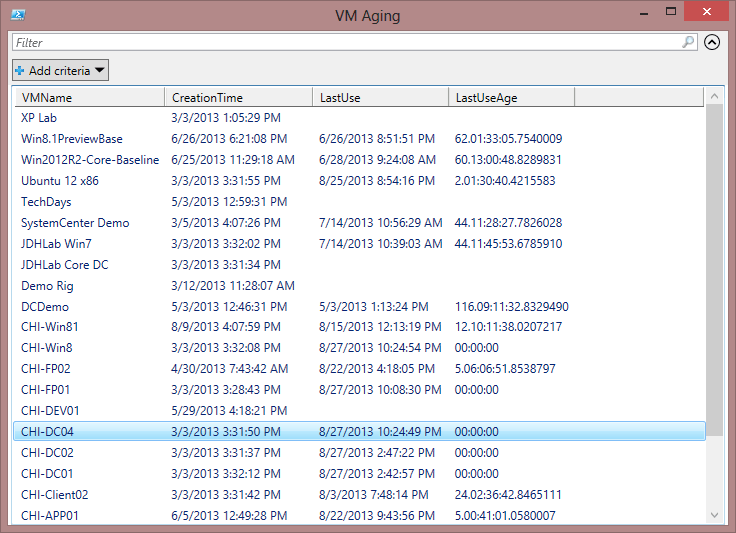
I can click on column headings to sort or apply additional filters. When I ran the command I saw warnings about missing disk files. The virtual machines in this output, like “XP Lab” have a hard disk file defined but something has happened to the file since the virtual machine was created. Certainly something for me to investigate.
You can still run this version of my function on the server and it will work just fine. But if you have the Hyper-V module installed locally, you can run it and specify the name of your Hyper-V server. For me, remote management is the name of the game and PowerShell makes it a fun game to play.
More in this category


About the Author

Jeffery Hicks